If you have not installed QAWeb, click here for detailed instructions on how to install QAWeb for Windows 10
Question:
- What are the recommended settings for Barco QAWeb Calibration software?
- How do I change the frequency of Barco QAWeb auto-calibration and compliance tests?
- How do I manually run a Barco QAWeb calibration and compliance test?
- Where do I find my previous calibration and compliance test reports in QAWeb?
- Barco QAWeb is not auto-calibrating and/or running the compliance test on the frequency you need
Solution:
Please follow steps below to properly install, configure and perform a full calibration and compliance test on your Barco monitors using Barco QAWeb.
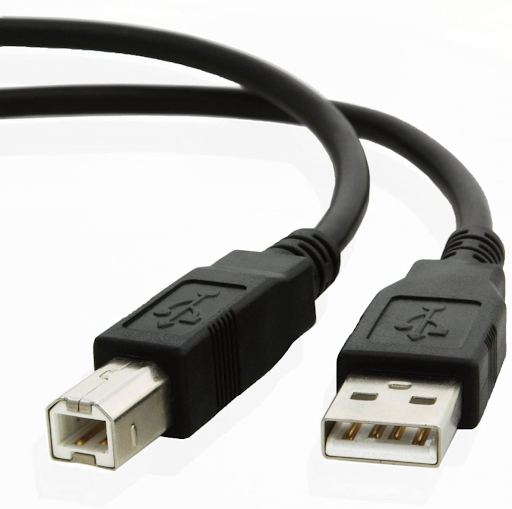
Before you start, please make sure that your USB Type-B cable is connected from your monitors to your computer.
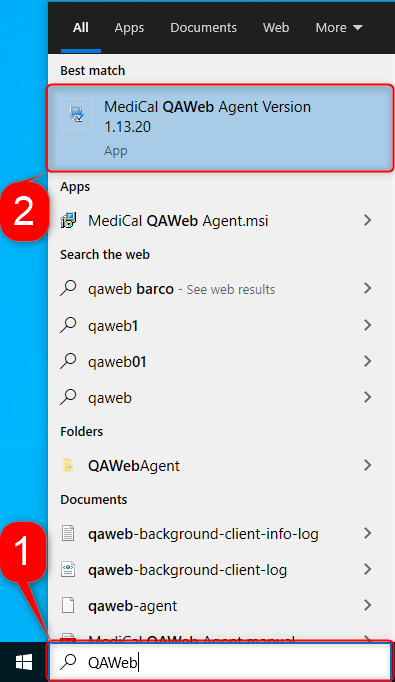
Open MediCal QAWeb Agent calibration software. You can search for the software in the search bar next to the Start Menu
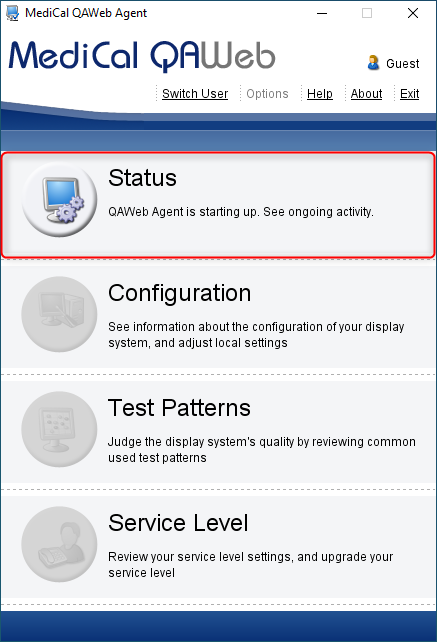
Wait for QAWeb to detect the configuration
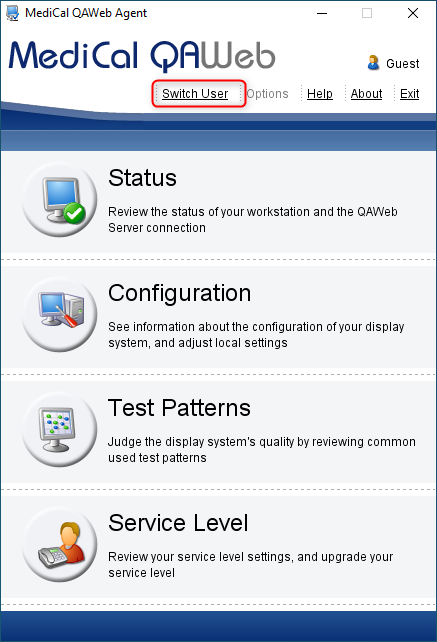
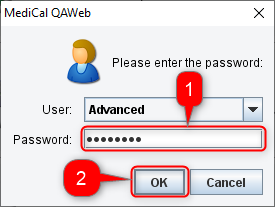
Click on Switch User
Type password: advanced then press OK
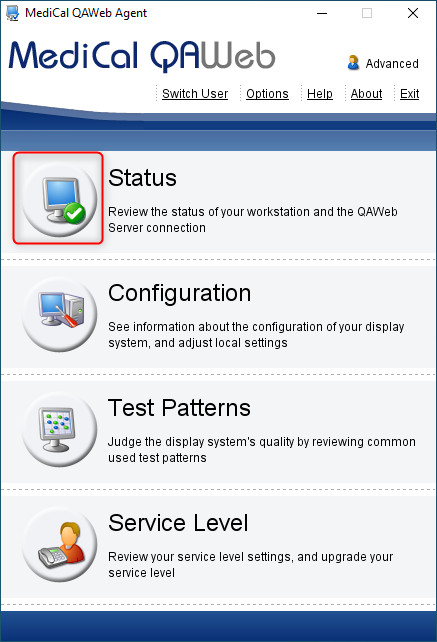
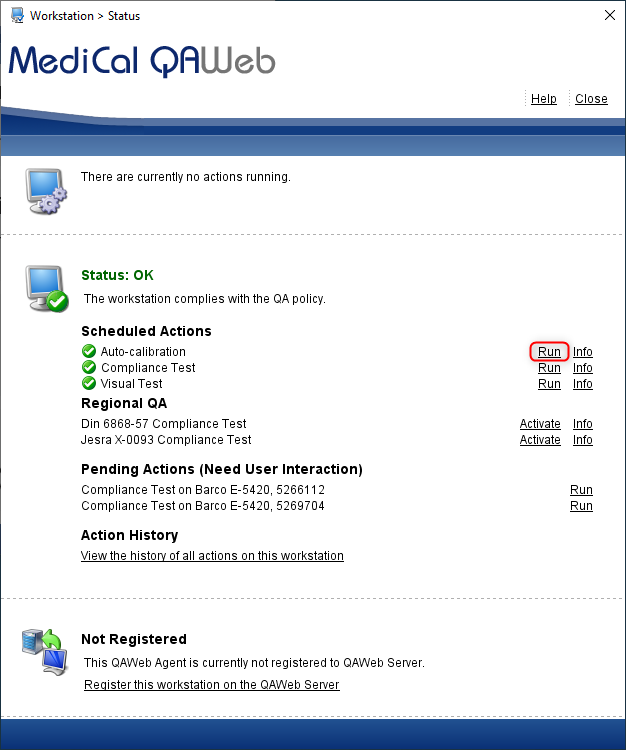
Click Status
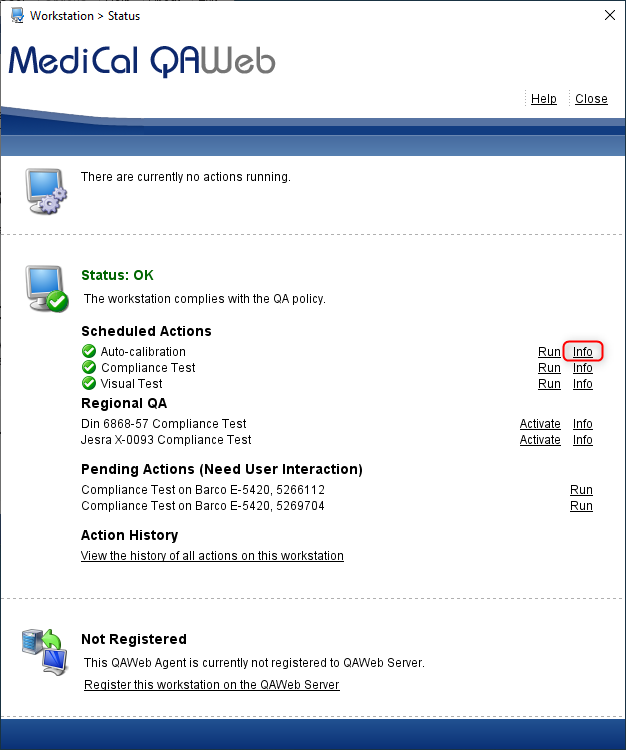
On Auto-calibration, click Info
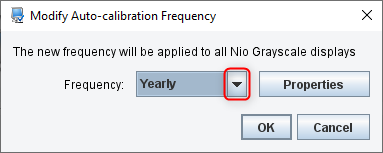
On Frequency, click Modify
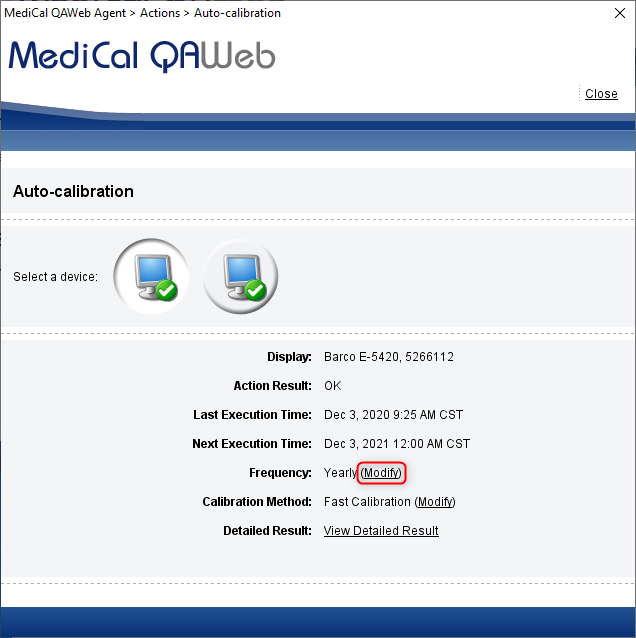
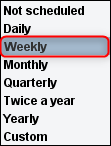
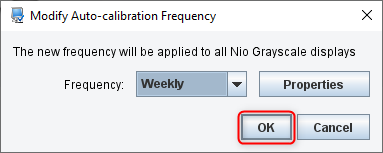
Change Frequency to Weekly then click OK. For Mammography, select Daily
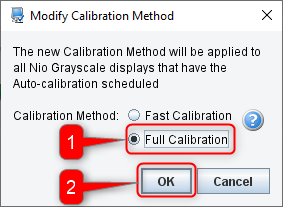
On Calibration Method, Click Modify
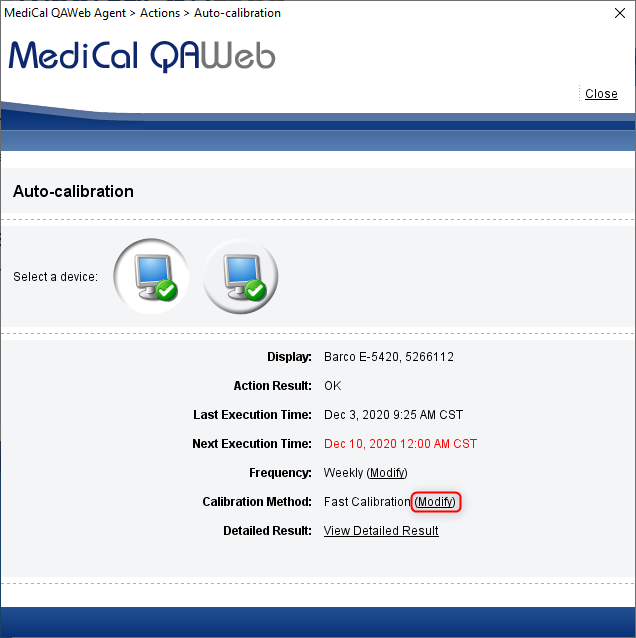
Select Full Calibration then click OK
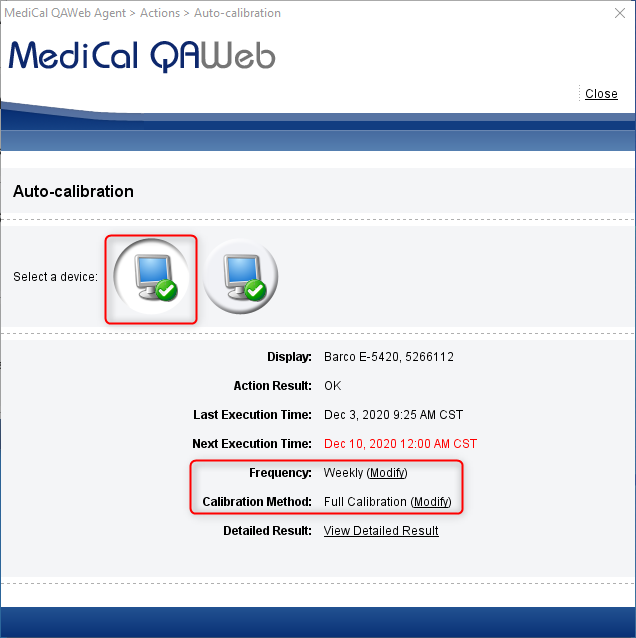
Verify changes on all monitors
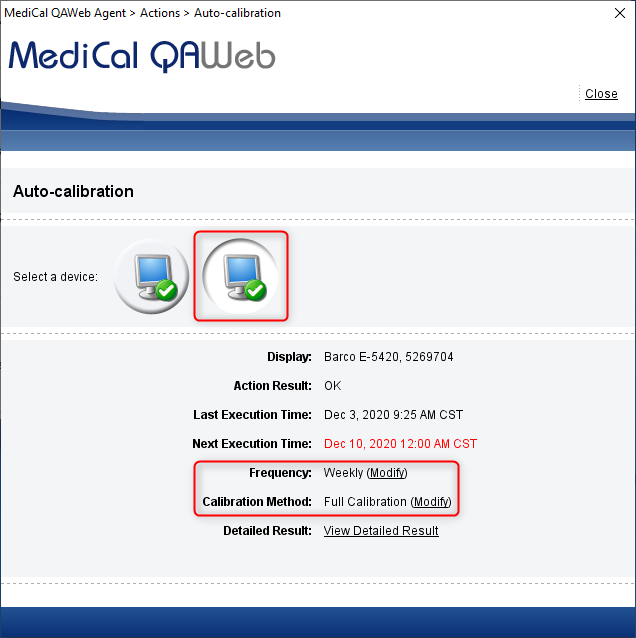
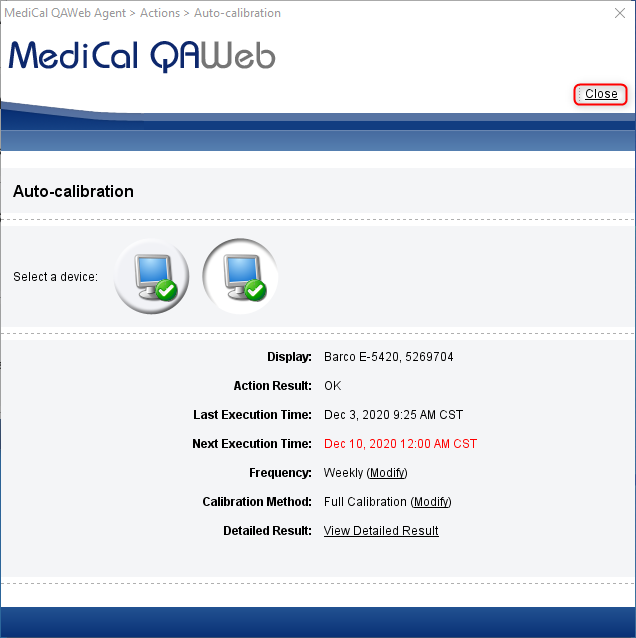
Click Close
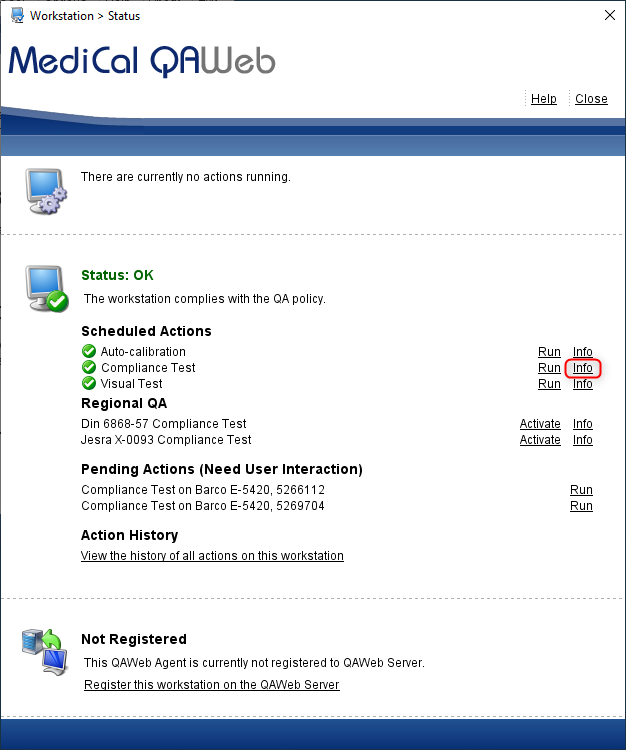
On Compliance Test, click Info
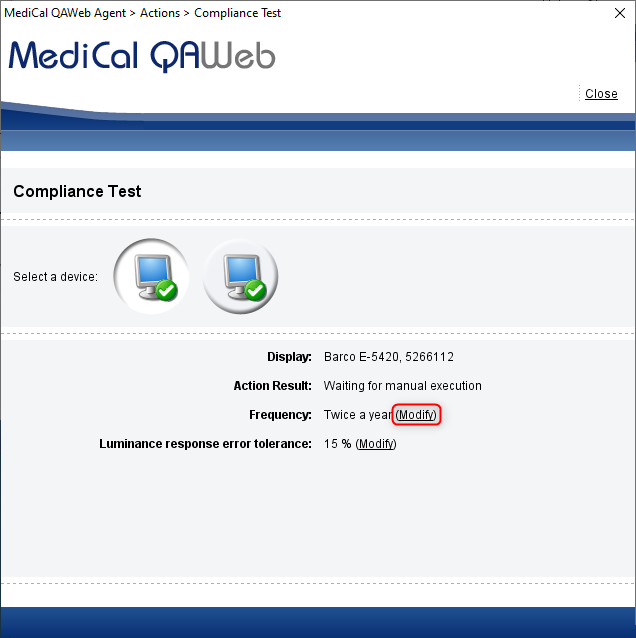
On Frequency, click Modify
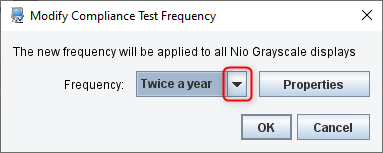
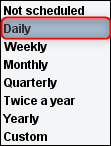
Change Frequency to Daily then click OK.
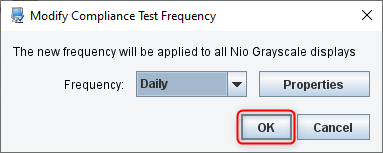
Verify changes on all monitors
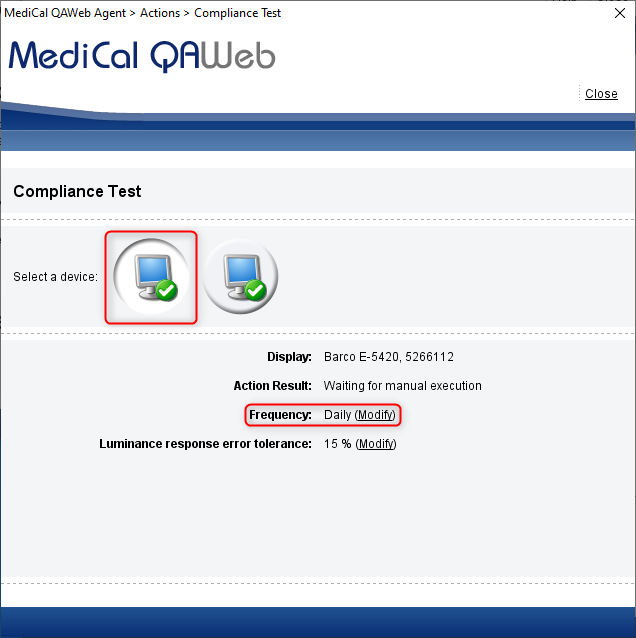
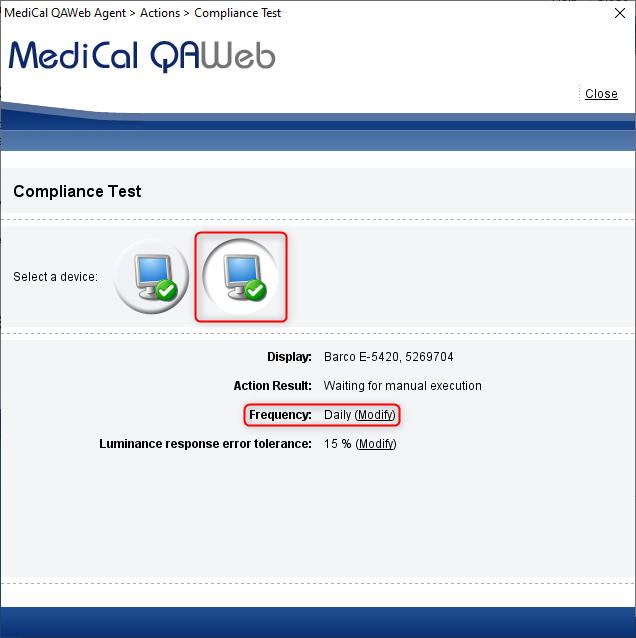
Click Close
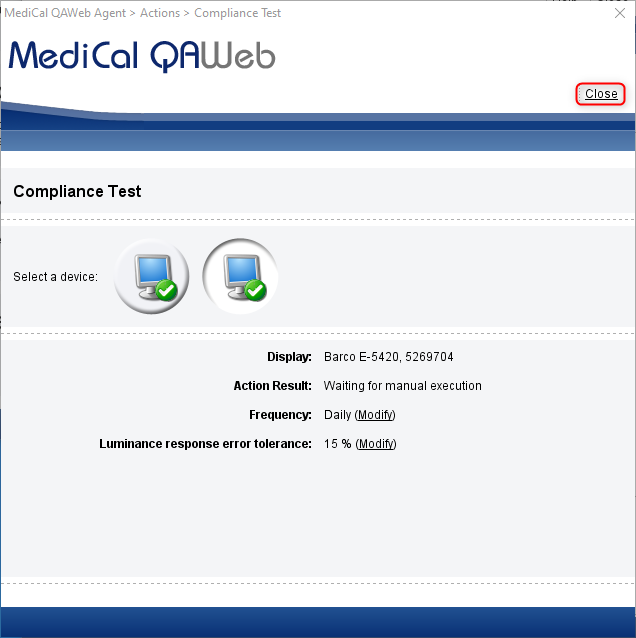
On Auto-Calibration, click Run
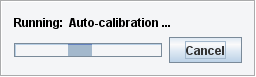
Wait for Auto-calibration to run
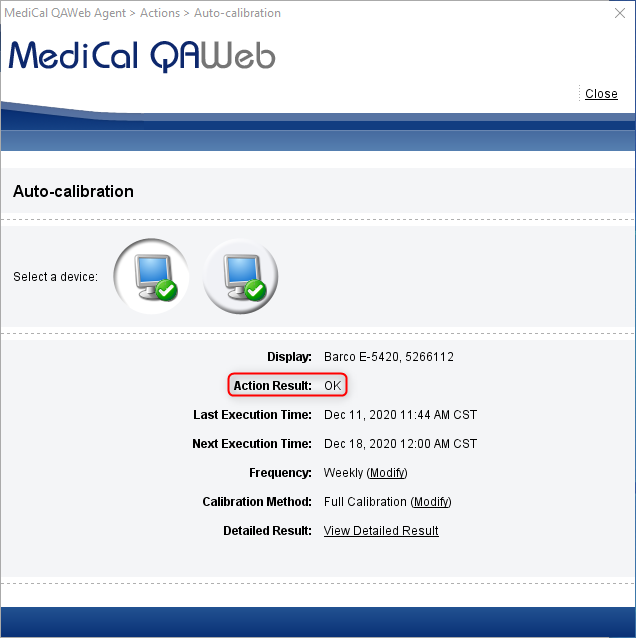
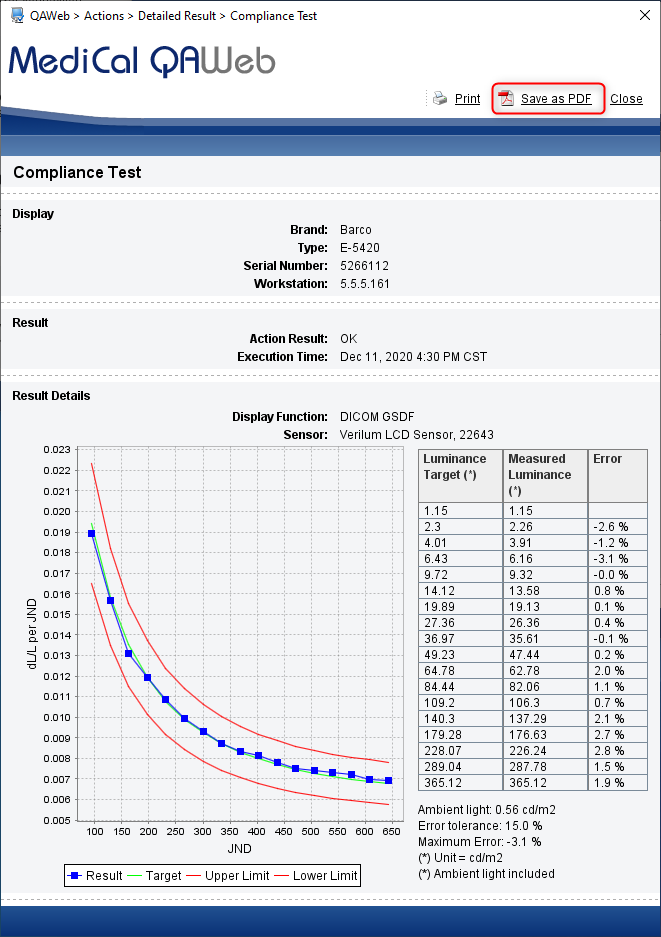
On the results page, take note of Action Result: OK
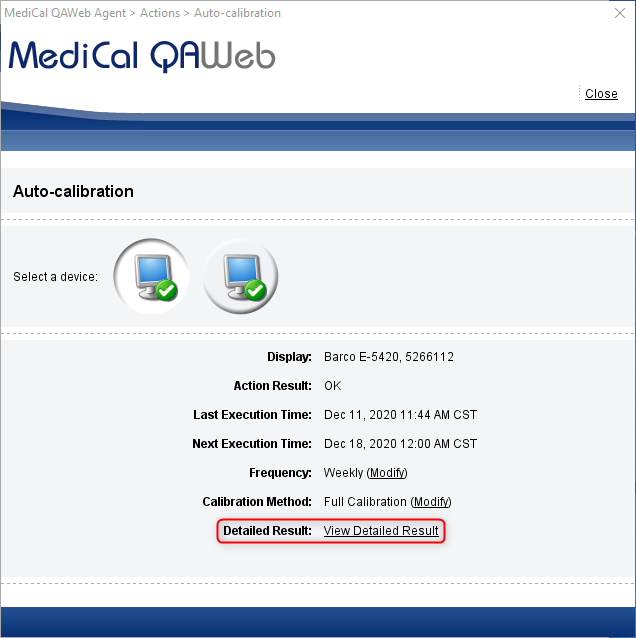
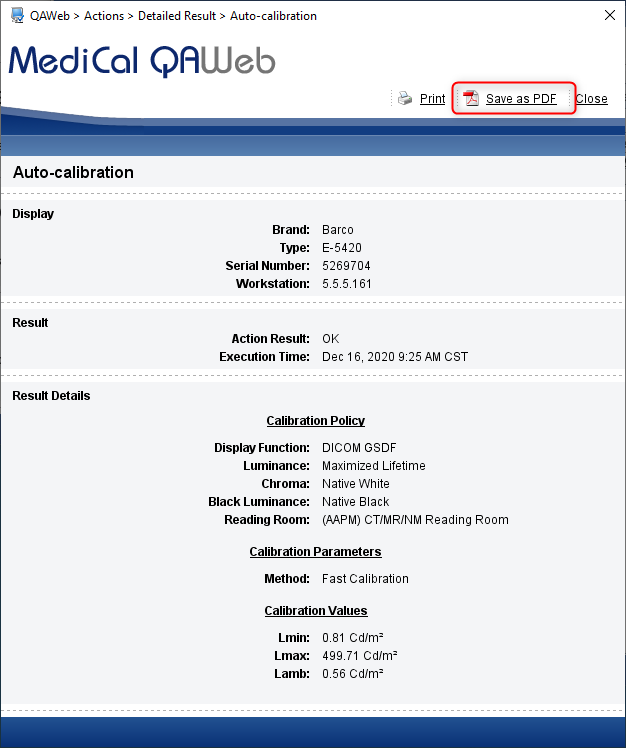
To view detailed report, on Detailed Result, click View Detailed Result
To save report, click Save as PDF
Click Open Report (Acrobat Reader required)
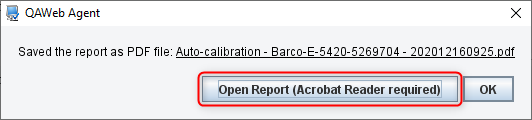
Save according to your PDF Reader Software
Following these steps for all monitors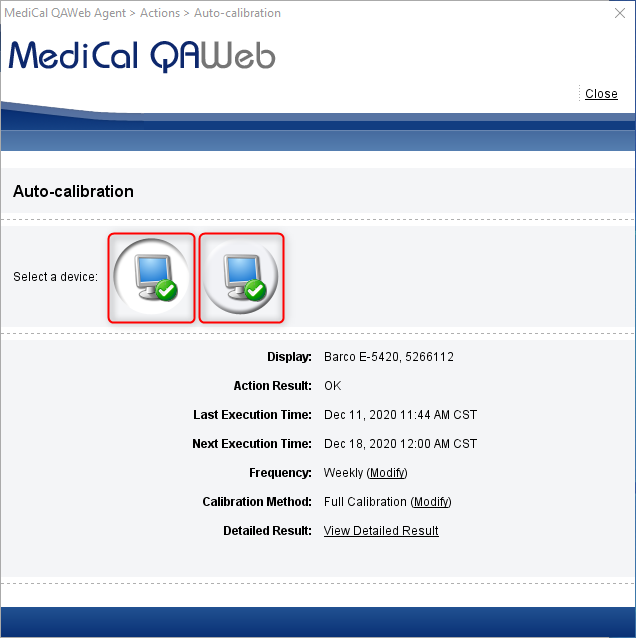
Click Close
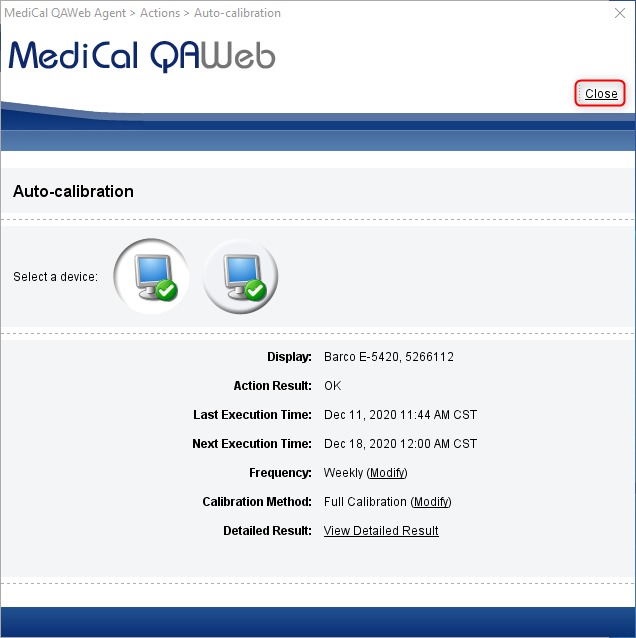
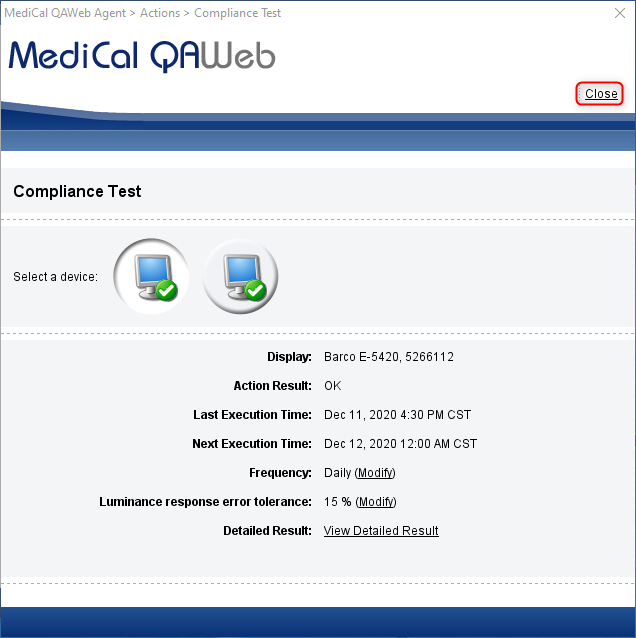
On Compliance Test, click Run
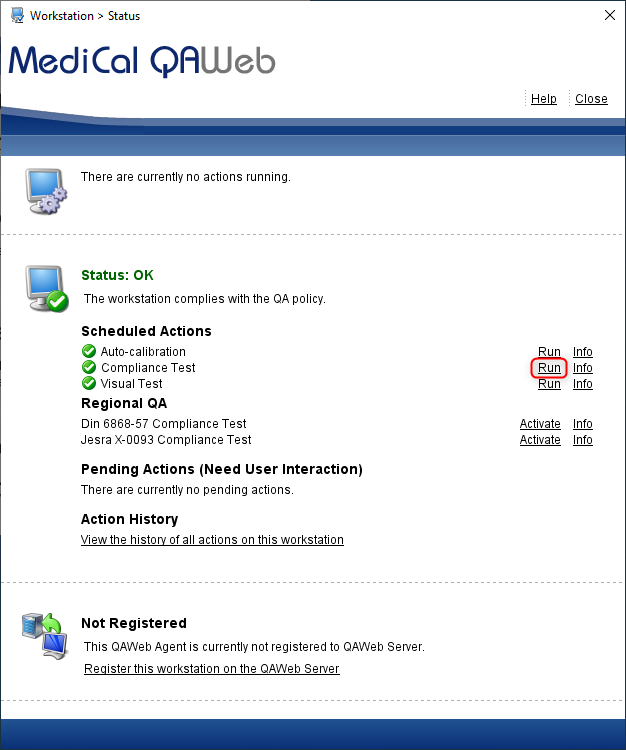
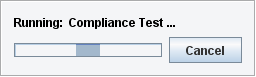
Wait for Compliance Test to run
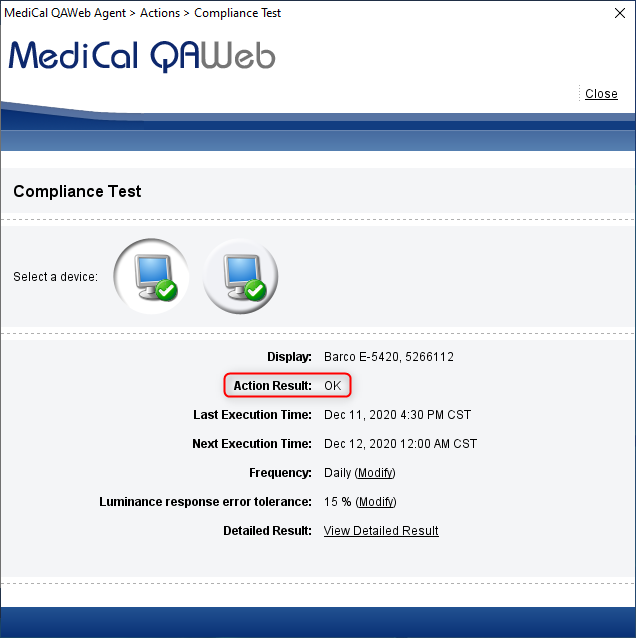
On results page, take note of Action Results: OK
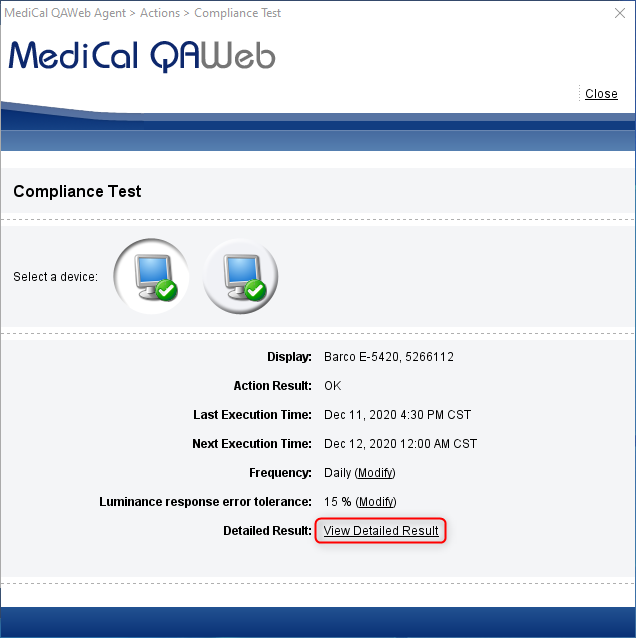
To view detailed report, on Detailed Result, click View Detailed Result
To save report, click Save as PDF
Click on Open Report (Acrobat Reader required)
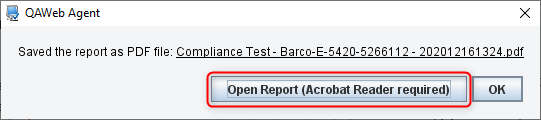
Save according to your PDF Reader Software
Click Close
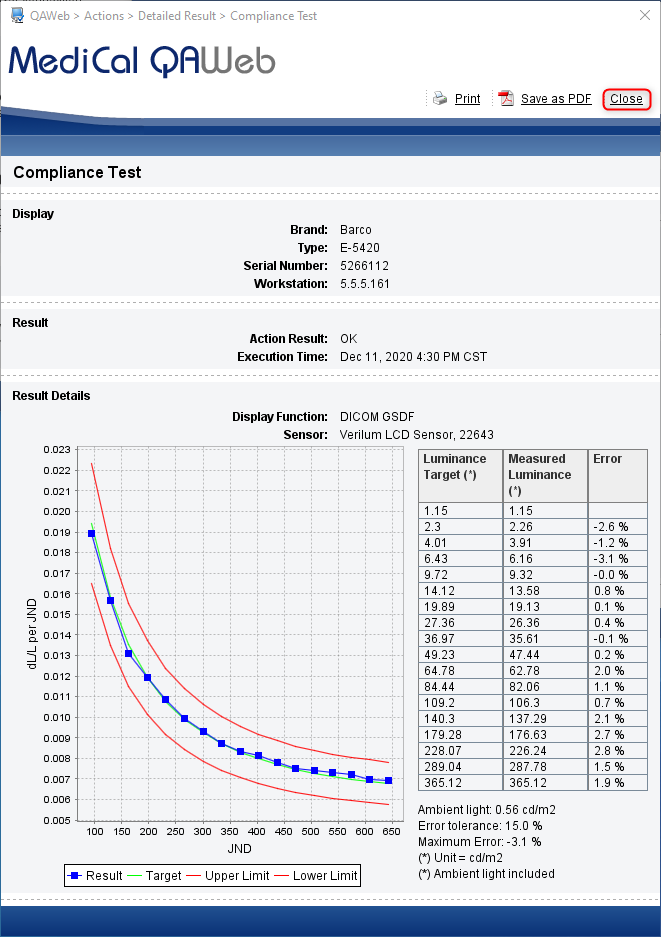
Following these steps for all monitors
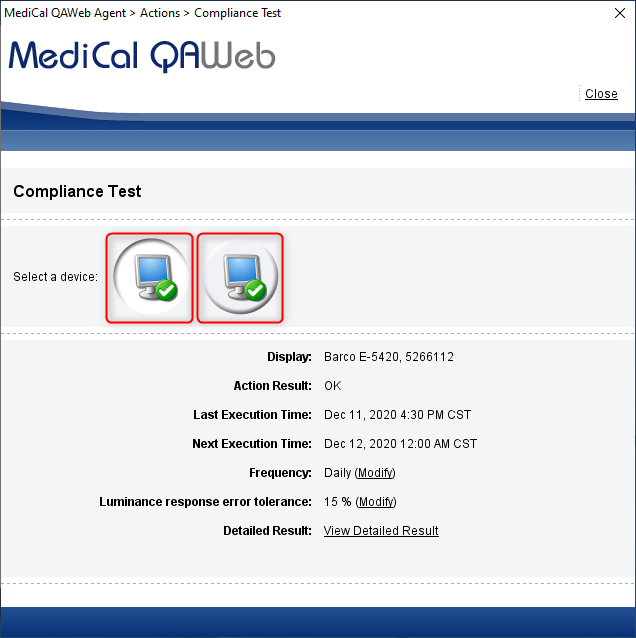
Click Close
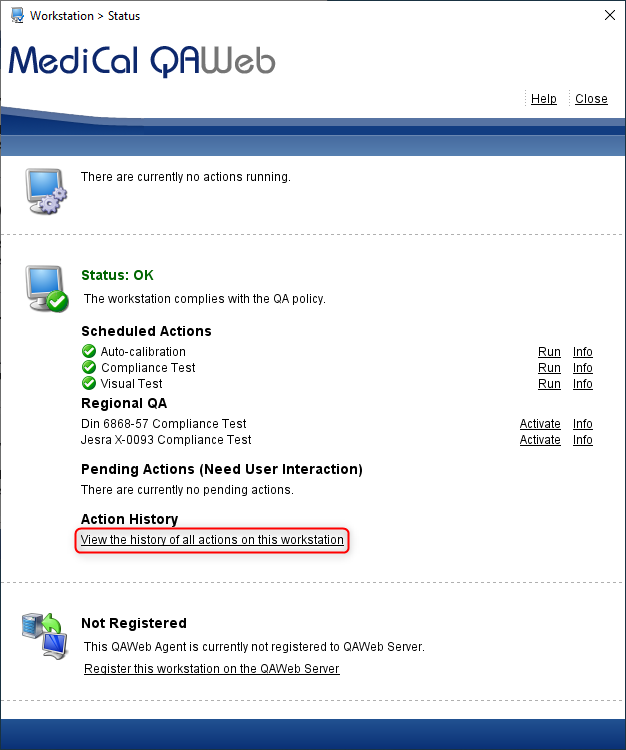
To view all reports performed on monitors, on Action History, click View the history of all actions on this workstation
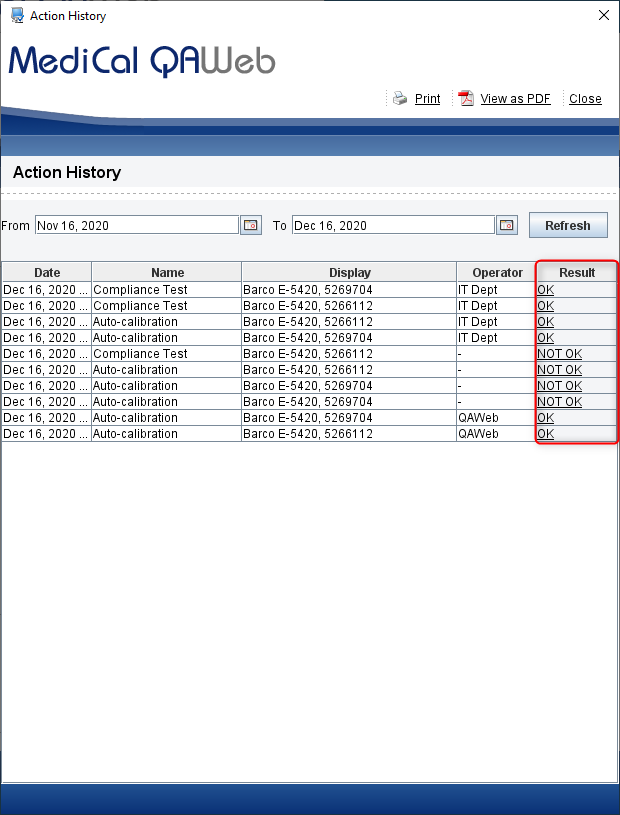
To view report, under Result, click on OK or NOT OK on desired report
Conclusion:
Your monitors should now be configured with the proper settings for auto-calibration and auto-compliance testing using the Barco Medical QAWeb, DICOM Calibration and QA Software.
Comments
0 comments
Please sign in to leave a comment.